
General Questions
My browser/Windows blocks the download/startup, what should I do?
These warnings only appear because the file is not signed with an expensive certificate. You can safely ignore these messages.
If “Windows protected your PC” (SmartScreen) appears: Click on “More info” and then on “Run anyway”.
In the download menu (three dots/arrow) next to the message, click on “Keep” or “Show more” → “Keep anyway”.
From the downloads badge, select “Keep” → “Keep anyway”.
In the download dialog, click the arrow next to the file and select “Save file” or “Keep”.
How do I activate Stecotec software?
When you start your program for the first time after installation, you will be prompted to enter your personal product key.
Click the “Activate program” button and then enter your product key. Once you confirm your entry with “Ok”, your program is activated.
Where can I find my product key?
The product key is sent to you by email. If you have not received a message, please check your spam folder.
I am already using other software, can I import my data?
Yes, this is possible. A CSV import function is available to you. The program can therefore read data from any spreadsheet (e.g., Excel). Your old software simply needs to allow exporting to a CSV file.
Note: Currently, this function is only unavailable in our Model Car Management software. However, an update for this will be released.
Does Stecotec software work on Windows 11?
Yes, our software works on Windows 11.
Is there an export function?
Yes, our software has an HTML, PDF, and CSV export function.
Are there free updates?
Yes, our software is constantly being developed further, and as a customer, you receive all updates for free.
Is free support available?
Yes, we offer free email support. The best way to reach us is via our contact form.
Does Stecotec software run on Mac?
Currently, our software is only available natively for Microsoft Windows. However, many customers use our programs without any issues on Mac using virtualization or third-party tools.
For example, customers tell us that the free tool PlayOnMac can run our program on a Mac without any problems.
Does Stecotec software run on Linux?
Yes, with the help of the free software Wine or PlayOnLinux, you can generally run our software on Linux as well.
Which currencies are supported?
Our software supports all currencies. You can set any currency in the settings.
Is access via a network drive / Dropbox possible?
Yes, that is possible.
Are my images saved directly in the database?
Yes, all images are saved directly in the database. This allows you to transfer your database from one computer to another while keeping your images intact.
Where is my data stored?
Your collection is stored locally on your hard drive. Therefore, only you have access to your data. The privacy of our customers is our top priority!
Can I attach files to my collectibles?
Yes, this is possible. The program has an integrated file management system. This allows you to attach any number of files to each collectible and open them directly within the program.
How can I sort my collection?
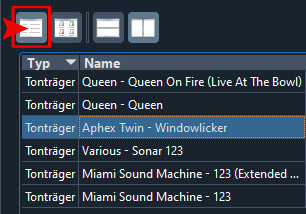
Switch to the table view and click on the column header you want to sort by. You can show new columns by right-clicking on the table header.
How do I move items to another folder?
- Select the items in the source folder.
- Right-click the selection -> Cut (or Ctrl+X).
- Go to the destination folder.
- Right-click in the folder view -> Paste (or Ctrl+V).
Alternatively, these actions are available via the menu bar under “Edit”.
How do I transfer the software + data to a new computer?
- Install the software on the new computer.
- Create a database backup on the old computer (File -> Create backup).
- Transfer the database backup to the new computer (e.g., via USB flash drive).
- Restore the database backup on the new computer (File -> Restore backup).